 COME
COMECheck whether a COME update actually completed
After an update attempt, compare the installed version and app-opening result. A completed download alone does not show that the app changed.
Check Android's outcome
Look for installation completion or an explicit error. If the installer was cancelled, the earlier version may still be present. Avoid inferring success from the presence of a new APK in Downloads.
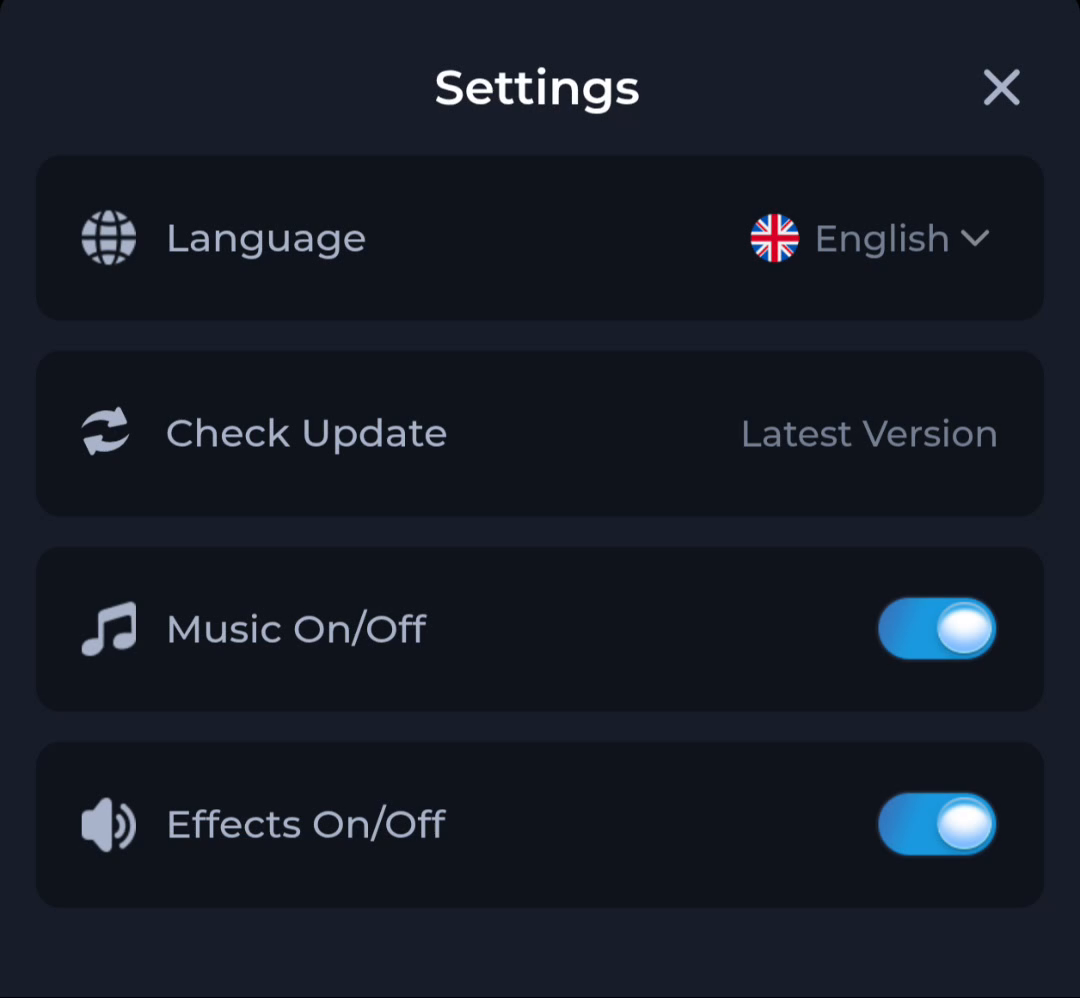
Compare the installed value
Use the phone's app information or another available version display, and compare it with the intended release. The Settings label Latest Version is a status cue, so record an identifier when one is visible. Do not replace missing information with a guess.
Test the ordinary entry
Open the app and check that the expected account route is accessible. If a sign-in or network issue appears, describe that separately from the update outcome. Preserve the previous working access where possible while seeking help.
A useful next step
Clean up obsolete installer files only after the installation result and account access are clear.
Related: Prepare a COME update while keeping account access