 COME
COMEPrepare a COME update while keeping account access
Before updating an existing COME installation, confirm your sign-in and recovery access. Keep the working app until the proposed update is understood.
Record the starting point
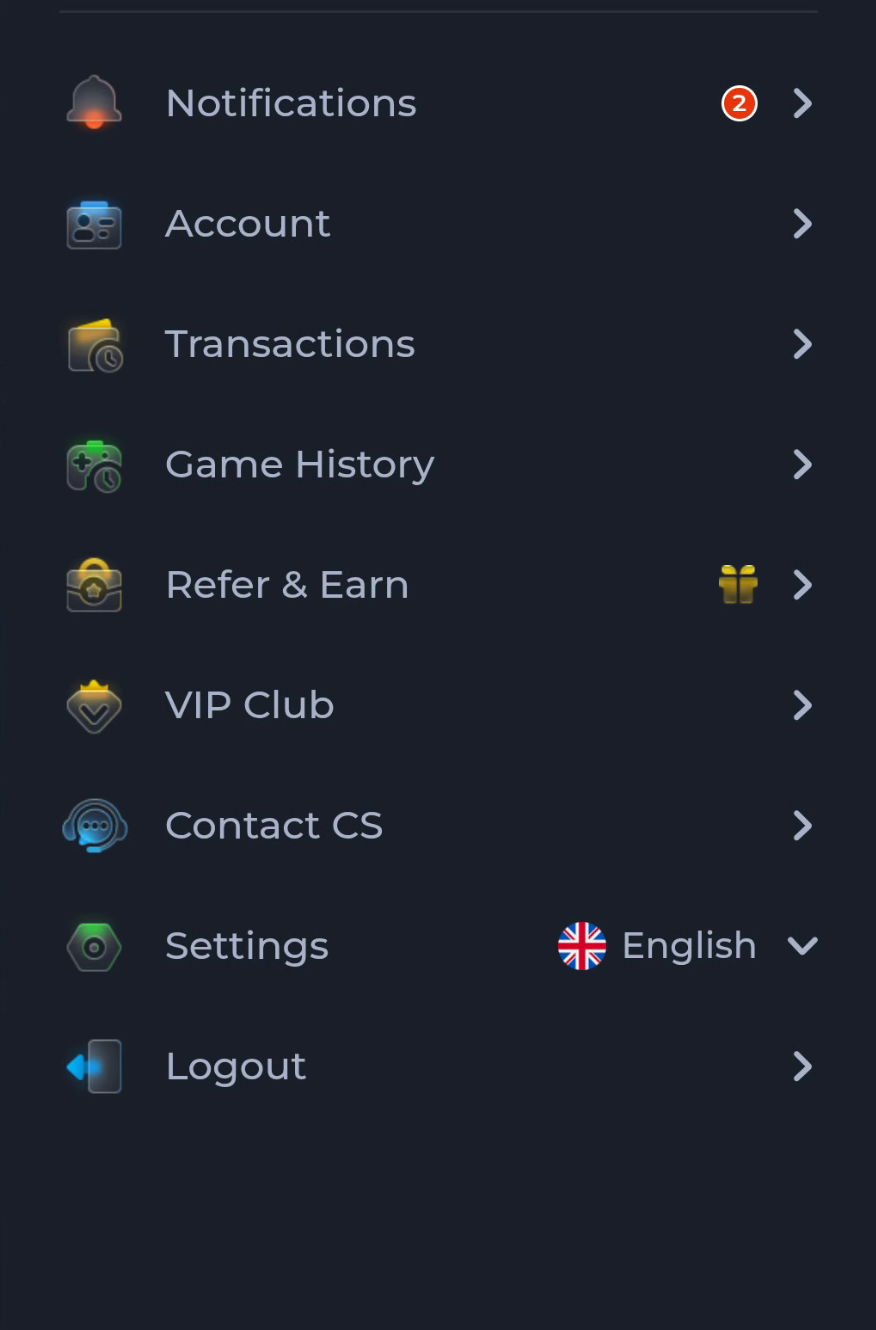
Note the installed version if visible and the account you intend to continue using. Make sure you can use the current recovery method. Do not put credentials into a shared note or screenshot while collecting technical details.
Check the update route
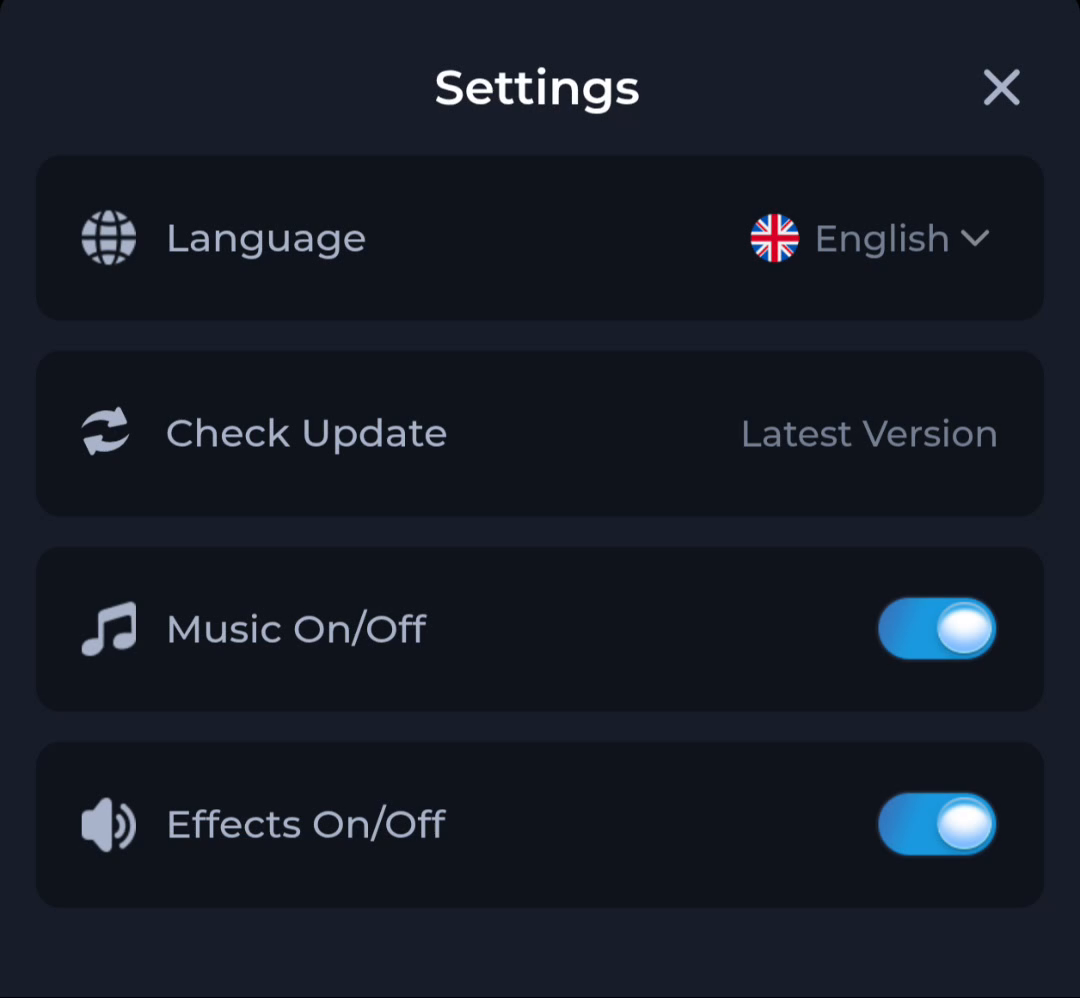
Inspect the current offered version and source, then follow the normal Android update process if appropriate. A downloaded file is not automatically a compatible update merely because its name contains COME.
Handle conflicts conservatively
If Android refuses the update or presents an unexpected app identity, stop and keep the existing installation. Do not uninstall, clear data or switch to a modified APK just to remove the warning. Record the message for the current help route.
A useful next step
Verify that the updated app opens and the intended account remains accessible before cleaning up old installer files.
Related: Check recovery access before reinstalling COME