 COME
COMEReading COME account menus after an update
After updating, confirm that you are using the intended account before interpreting Transactions or Game History. An empty or different view needs context.
Identify the active account
Check the account area using the service's normal interface. Do not expose account details in screenshots sent for technical help. Updating software and selecting an account are separate operations, even if they happen close together.
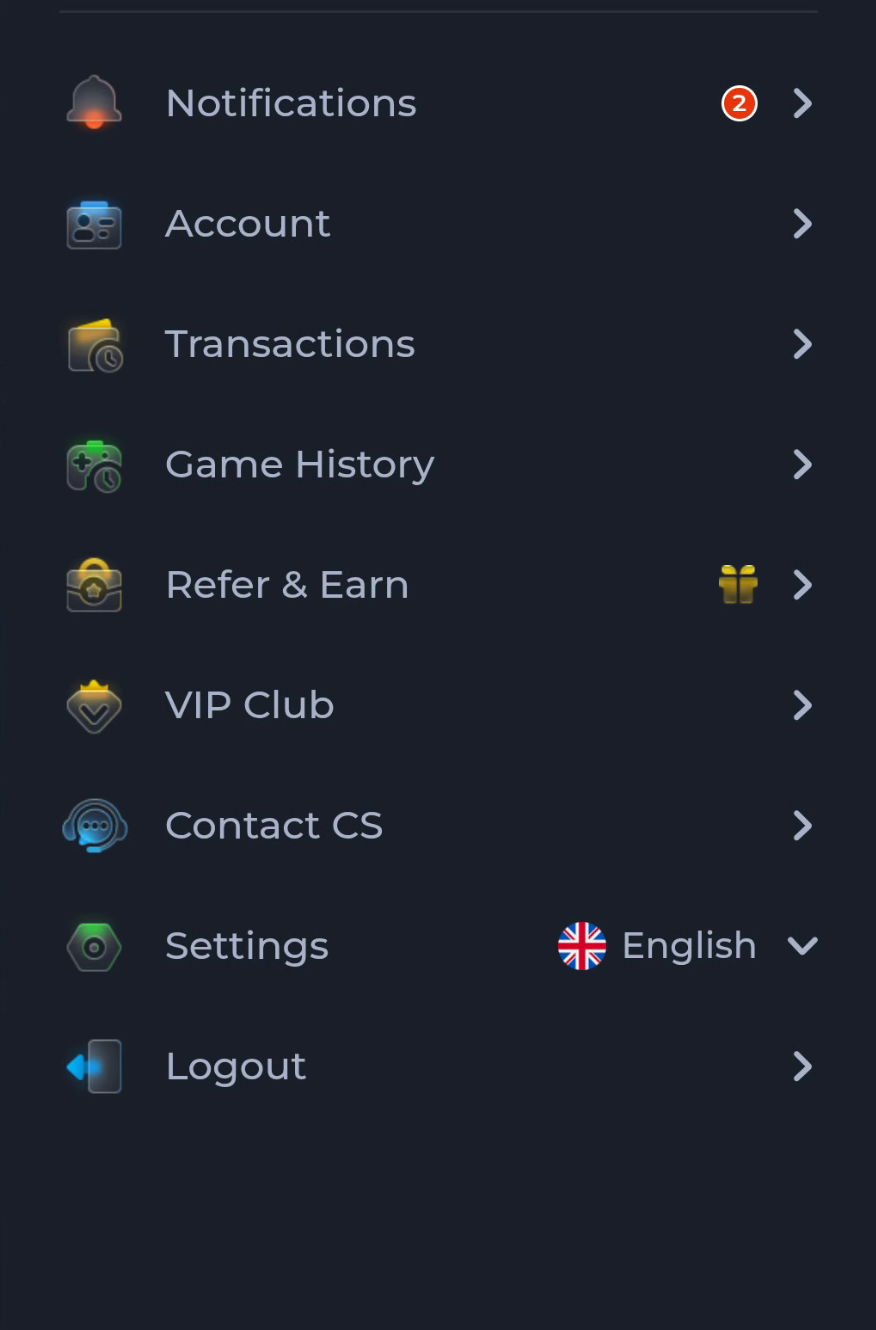
Read each history type
Transactions and Game History are different menu labels. A browser download history records files, while these app sections concern activity within the service. Do not use one list as evidence that an item must appear in another.
Avoid destructive guessing
If expected information is not visible, note the account context, filters, time period and exact screen. Do not clear data or create another account to see whether the history changes. Use the service's help route for account-specific records.
A useful next step
Keep a concise description of the missing view and seek help from within the correct account context.